Offline Notes

Notes and highlights for Chrome

Save what matters.
Find it later.

Keep articles, highlights, and your notes together. Read offline and export to Markdown when you need them.

Free tester buildDesktop ChromeManual install
The actual extension · Reader preview
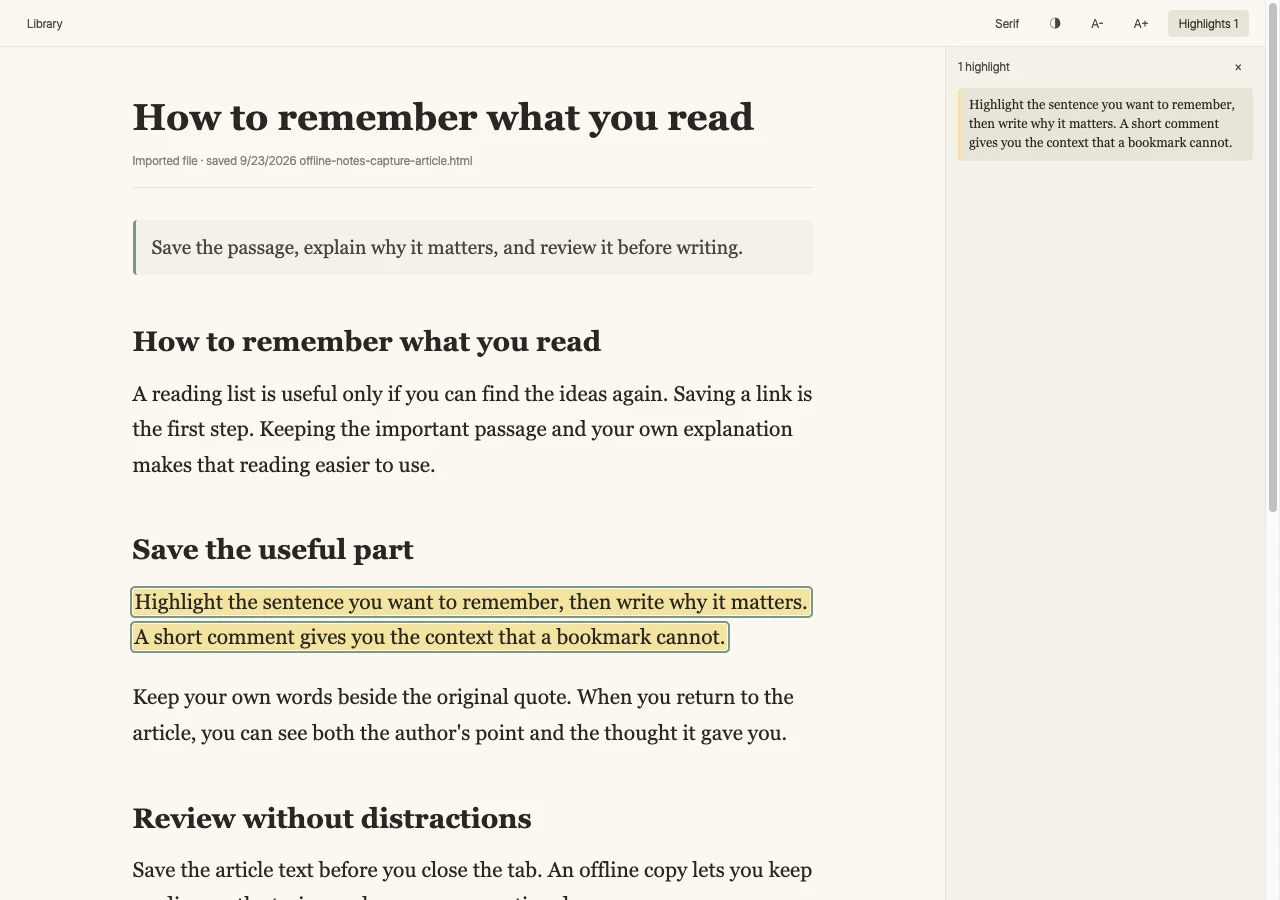
Offline Notes showing a saved article, a highlighted passage, and the highlights panel.

Your article and highlights in one view. View full size ↗
Captured from the real app using a sample article.

Watch the steps.
Then try them.

Install the v1.4.1 tester build, then see highlighting and export in the real extension. The reader screenshots and highlighting/export clips were recorded on v1.3.1; those workflows still apply. Every clip has English narration and large on-screen subtitles.

01 / Installation · 61 sec

From download to your first note.

Follow the Chrome screens and on-screen instructions: extract the ZIP, load the extension, and check that it is enabled.

Read the installation steps
  1. After signup, download the v1.4.1 tester ZIP on your desktop computer.
  2. Extract the ZIP. On Mac, double-click it. On Windows, right-click and choose Extract All.
  3. In a separate Chrome profile, enter chrome://extensions in the address bar.
  4. Turn on Developer mode at the top right, then click Load unpacked.
  5. Select the extracted folder containing manifest.json, then confirm. Do not select the ZIP or its parent folder.
  6. Check that Offline Notes appears, shows version 1.4.1, and is enabled.
  7. Optionally open Details and turn on Pin to toolbar. Open Offline Notes from Chrome's Extensions menu.
  8. Keep the extracted folder in place. Chrome loads the extension from it.

Download the installation video

02 / Highlights · 16 sec

Find the useful parts faster.

Highlight a passage, then open the highlights panel to review it without searching the whole article.

Read the steps
  1. Open a saved article in the offline reader.
  2. Select the text you want to keep.
  3. Click Highlight in the selection menu.
  4. Click Highlights at the top right to see the saved passage.

03 / Notes and export · 16 sec

Use your notes outside Chrome.

Add your explanation to a highlight, then download the article and notes as a Markdown file.

Read the steps
  1. Open a saved page from the Pages tab.
  2. Click Add a note below a highlight and type your comment.
  3. Click outside the comment to save it.
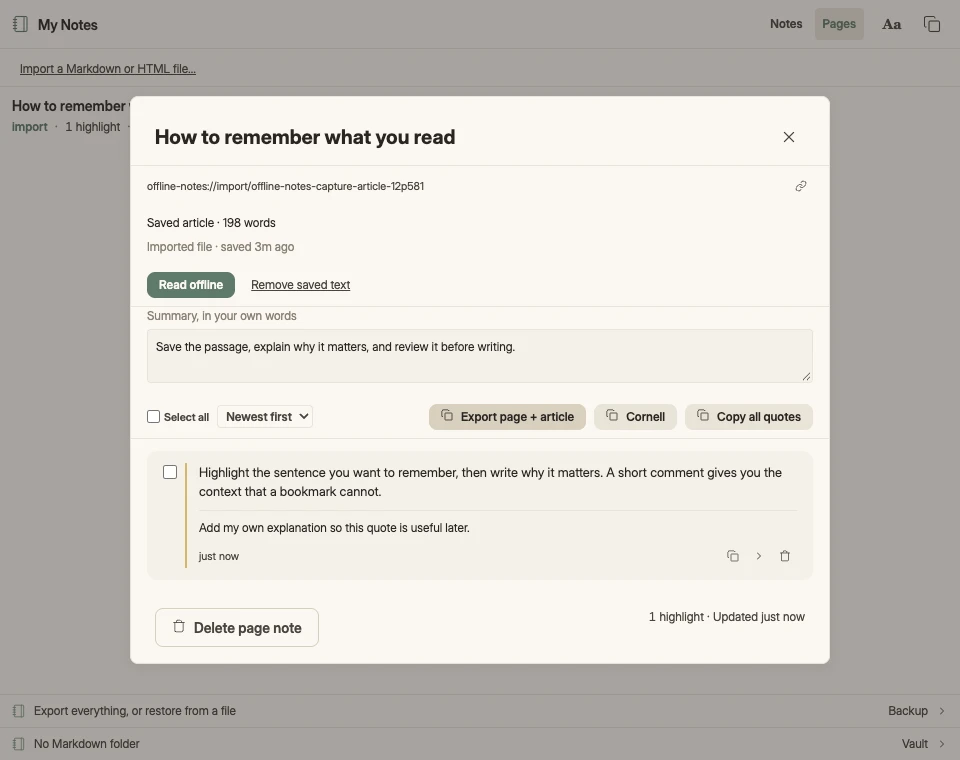
  4. Click Export page + article to download Markdown. Open the file in your preferred editor.

Stop searching
old tabs.

Keep the article, the quotes you selected, and your comments together. Return to an idea without rereading the whole page.

Use it for research, study, or the articles you want to use in your next piece of writing.

Remember why you saved it.

Add a private comment beside a quote in the extension’s sidebar or reader, not on the source website. Use five highlight colours to organise what matters to you.

Read without a connection.

Save article text while you are online. Read it later with your highlights, even on a train or when your connection drops.

Keep your research together.

Capture quick notes, search by keyword, and organise with tags. Import Markdown or HTML files to read and highlight your own documents.

Your files. Your choice.

Take your notes
into your next draft.

Export articles, quotes, and comments as Markdown. Open them in Obsidian or another editor without copying each passage by hand.

You can also mirror notes to a local folder. This is a one-way export, not two-way sync. Keep a JSON backup of your library.

Real Offline Notes page view with a summary, highlighted quote, personal comment, and Export page plus article button.
Actual page notes, using sample content. View full size ↗

Save it.
Use it later.

  1. 01 / Select

    Highlight useful text.

    Select a passage on a web page and save it from the capture bubble.

  2. 02 / Add context

    Write why it matters.

    Choose Note to open the extension-owned sidebar, then add your private comment there.

  3. 03 / Save

    Keep an offline copy.

    Press Alt+S (Option+S on Mac) to save readable article text for later.

  4. 04 / Use

    Review or export.

    Read your highlights together or export Markdown to use in your notes, research, or writing.

Common
questions.

This is a tester build. Use a separate Chrome profile and back up notes you want to keep.

Why do you ask for my email?

The free tester download is offered in exchange for joining the Offline Notes tester list. With your consent, blacklogos stores your email in Resend for tester updates and feedback requests. Cloudflare retains a hashed email identifier and a consent record. No email is automatically sent when you sign up: the download appears on this page. Your email is not connected to your extension notes. You can request removal through GitHub.

Which version am I testing?

This page offers the fixed version 1.4.1 tester build as a versioned ZIP containing the extension runtime and license notices. Unpacked installations do not update automatically.

How do I install the tester build?

After signup, download and extract the ZIP on a desktop computer. In a separate Chrome profile, open chrome://extensions, enable Developer mode, choose Load unpacked, and select the extracted folder containing manifest.json. Keep that folder in place. Start with a non-sensitive article and back up anything you want to keep.

Does Offline Notes upload my notes?

The extension stores notes in chrome.storage.local in your browser profile. It has no account, cloud sync, analytics, or extension network requests. Private comments are entered on extension-owned pages, not in the source website. Visible highlights remain visible to source websites. The website’s email signup is separate. An optional folder mirror writes Markdown to a folder you choose; a sync service may sync that folder. Local storage is not an encrypted vault. Protect your device and keep backups.

Why does Chrome ask for access to websites?

Offline Notes uses website access to capture selected text, extract readable articles, and restore highlights on pages you revisit. Use the popup’s per-site switch to turn capture and highlights off for a site and its subdomains without deleting saved notes. You can also manage site access or disable the extension in Chrome’s extension settings.

Can I read saved articles without internet?

Yes. Open previously saved article text and highlights without an internet connection. Save the article while the source page is available. The offline reader preserves text structure, not a full copy of images, videos, or interactive web pages.

Can I use my notes in Obsidian?

Offline Notes exports Markdown files that Obsidian can read. You can also choose a local folder for Markdown mirroring. This is a write-only, file-based handoff, not two-way sync or an Obsidian plugin. Edits made in that folder do not come back into the extension.

Which import and export formats are supported?

Import Markdown and HTML files as page notes, but not PDFs. Export notes as Markdown, page highlights as a Cornell-style Markdown sheet, or note images as PNG. Use JSON backup and restore to preserve your library.

What limitations should testers expect?

Chrome internal pages and PDF highlighting are not supported. Article saving retries for delayed page content, but some pages cannot be extracted. Unpacked installations require manual updates. Use a separate Chrome profile for testing; do not replace an existing installation with valuable notes without a backup.

Is testing free, and how do I send feedback?

The tester download is free and the source is available on GitHub. Use the Send feedback link to open a GitHub issue; a GitHub account is required. Include your browser version, what you tried, and what happened. Issues are public, so do not post private notes, email addresses, or confidential page content.
What we store.
What stays local.

Who collects it: Offline Notes is maintained by blacklogos. This website collects the email you submit and records your consent to receive Offline Notes tester updates and feedback requests. Your email is stored in Resend, our contact-list provider. Signup adds you to that list only and does not change an existing unsubscribe preference. No email is automatically sent; your download appears on this page.

What Cloudflare retains: Cloudflare hosts this website and processes signup requests. Its storage retains a hashed email identifier and a consent record: signup time, consent wording version, tester version, Resend contact ID, and the purpose you agreed to. Raw email addresses and raw IP addresses are not stored in that record. A separate hashed IP marker expires after 60 seconds and helps limit repeated requests. Hashing is not a promise of anonymity.

Website and extension are separate: The extension’s articles, highlights, and notes stay in your browser profile unless you export them or choose a folder that another service syncs. They are not submitted with this form. This page uses no third-party font or analytics scripts.

Comments and website visibility: Private comments are entered on extension-owned pages, not inside the source website. Visible highlights remain visible to source websites, which can observe changes to their page. Local storage is not encrypted. Use the per-site switch when you do not want capture or highlights on a site.

Changing your mind: Your email and consent record are kept for the tester list until you ask to leave. Contact blacklogos through a GitHub issue to withdraw consent or request deletion of your tester-list contact and consent record. A GitHub account is required. Issues are public: ask for a private way to identify your signup, and do not put your email or notes in the issue.

Offline Notes screenshot